
If you want customers to contact your business by text, you can add a text message or WhatsApp option to your Google Business Profile.
When messaging is enabled, customers can start a conversation directly from your profile in Google Search or Google Maps.
In this guide, you’ll learn exactly how to add a texting number or WhatsApp link to your Google Business Profile, step by step.
Before you start
Messaging options are only available in select countries and regions.
You’ll need:
- Access to your Google Business Profile
- A verified profile
- A phone number that can receive SMS or a WhatsApp Click-to-Chat URL
Step-by-step: Add text messaging to your Google Business Profile
Follow these steps:
- Sign in to your Google Business Profile
- Click Edit profile
- Select Contact
- Next to Chat, click the edit (pencil) icon
- Open the dropdown menu
- Select Text message (or WhatsApp)
- Enter:
- A phone number that can receive text messages or your WhatsApp Click-to-Chat URL
- A phone number that can receive text messages or your WhatsApp Click-to-Chat URL
- Click Save
If messaging is supported in your area, customers will now see a messaging option on your profile in Google Search and Google Maps.
How to add a WhatsApp Click-to-Chat link
If you select WhatsApp, you’ll need a Click-to-Chat URL.
The format looks like this:
https://wa.me/yourphonenumberReplace “yourphonenumber” with your full international number (no spaces, brackets, or dashes).
Example:
https://wa.me/15551234567Paste that URL into the Chat field and save.
Important things to know
Before relying on messaging, understand these limitations:
- Messaging is only available in certain countries.
- If you add both WhatsApp and text messaging, only the text option will be displayed.
- Your number must support SMS (landlines won’t work).
- If you respond slowly, visibility may be reduced.
Google expects businesses to reply quickly. Messaging is meant to be convenient and not another ignored inbox.
Why adding texting can increase conversions
Local customers tend to follow a predictable path. They search for a service, scan reviews to narrow their options, reach out to two or three businesses, and ultimately hire the one that responds first.
Speed and convenience often matter more than anything else. According to a LocalImpact report, a fast response time is a top priority for consumers when they’re choosing a local service provider.
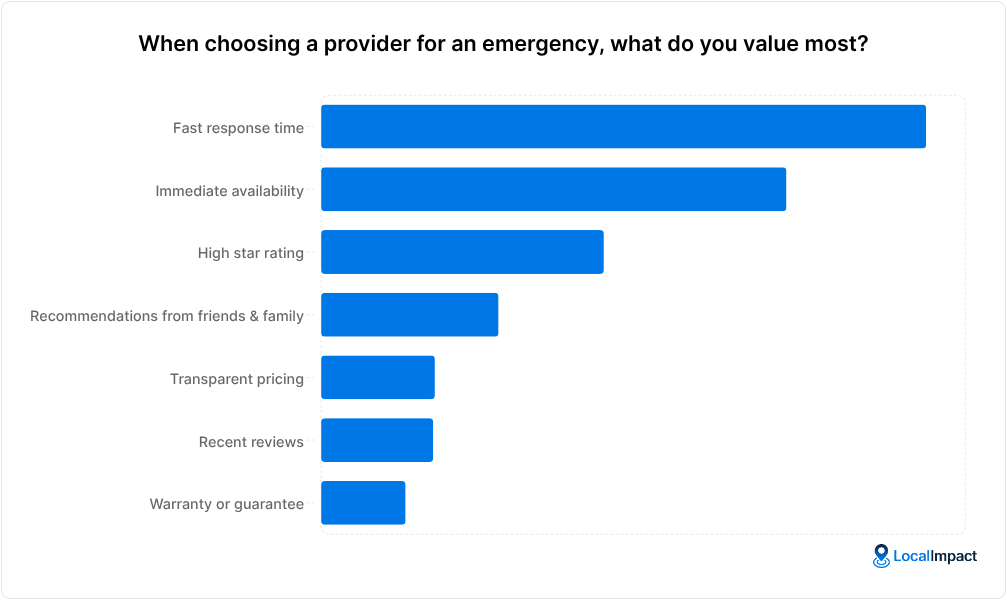
Texting lowers the barrier to the first contact. There’s no hold music, no voicemail, and no pressure of a phone call.
Instead, it allows for quick, low-friction back-and-forth that fits naturally into a customer’s day.
For service businesses like HVAC, plumbing, electrical, roofing, or cleaning companies, this can translate into more booked jobs without any increase in traffic.
If a customer is at work, sitting in a meeting, or dealing with a noisy environment, sending a quick message is simply easier than making a call.
Ready to grow your business?
Capture leads, engage customers instantly, and turn conversations into sales with TextNinja's powerful SMS chat widget.
Start free trial
Best practices for managing Google Business text messages
Adding texting is simple. Managing it well is what drives results.
1. Respond within minutes (not hours)
Response speed directly affects whether you win or lose the job. When a customer messages you through your Google Business Profile, they’re often contacting at least one or two competitors at the same time.
If you reply within a few minutes, you immediately position your business as attentive and reliable. If you wait an hour or more, there’s a good chance someone else has already secured the booking.
You don’t need a perfect answer right away.
A simple acknowledgment such as “Thanks for reaching out, we just received your message. Can you share a few more details about the issue?” keeps the conversation moving and signals that a real person is engaged.
The goal is to respond fast first, then gather details and move toward scheduling.
If possible, assign message notifications to a specific team member during business hours so responsibility is clear and response time stays consistent.
2. Use auto-replies after hours
If a customer messages you outside business hours and hears nothing back, they may assume you’re unresponsive and move on. An automatic reply sets expectations and keeps the lead warm.
Your after-hours message should confirm receipt and clearly state when they can expect a response.
For example: “Thanks for your message. Our team is currently offline, but we’ll get back to you tomorrow morning between 8 and 9 a.m.” Giving a time window is stronger than saying “soon” or “as soon as possible.”
You can also include a gentle next step, such as asking them to describe the issue or share their address. That way, when you reply the next day, you already have the information needed to move toward booking.
Pro tip: You can use TextNinja to set up an SMS auto-responder and ensure every lead text gets a response.
3. Don’t use your personal phone
Using your personal phone for business messaging might work temporarily, but it creates long-term problems. Messages can get buried between personal conversations, and if you’re unavailable, no one else can step in to respond.
A shared business inbox or SMS platform ensures that conversations are centralized and visible to the entire team. This prevents missed inquiries, allows teammates to collaborate on replies, and makes it easier to maintain consistent response times.
It also creates a record of conversations, which is useful if there are questions later about pricing, availability, or service details.
If texting becomes a significant lead channel, you should treat it like any other acquisition source by monitoring how quickly messages are answered and how many conversations convert into booked jobs.
Pro tip: TextNinja offers a shared inbox where your team can read and respond to all the texts received from leads and customers.
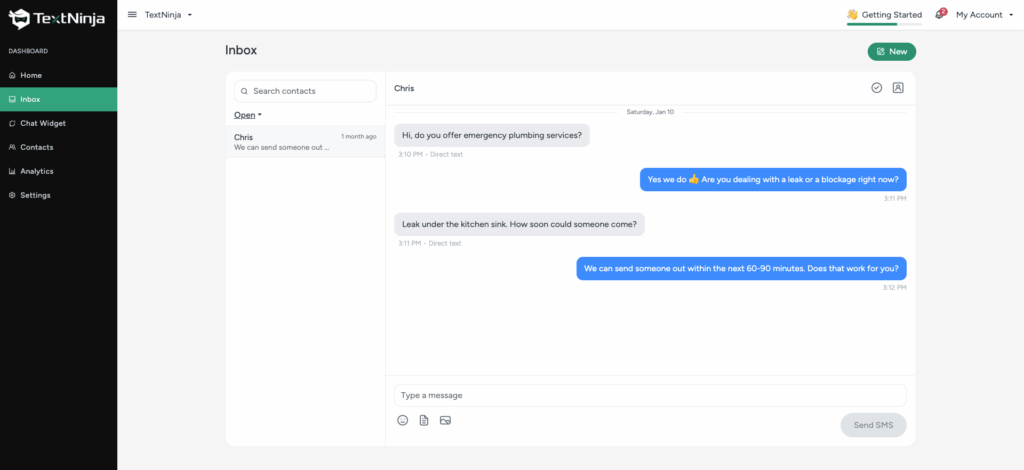
4. Test it yourself before relying on it
After adding texting to your Google Business Profile, don’t assume everything is working correctly. Search for your business name in Google, open your profile, click the messaging option, and send yourself a test message from a different device.
Confirm that the message arrives immediately, notifications are triggered properly, and replies send without errors. Check how the conversation appears from the customer’s perspective so you understand the experience firsthand.
It only takes a few minutes to test, but skipping this step can result in missed leads if something was set up incorrectly. Treat your messaging channel like a live lead source, not a feature you turn on and forget.
Final Thoughts
Adding a texting number to your Google Business Profile takes just a few minutes.
But the impact can be significant.
When customers are ready to reach out, the easiest contact option usually wins. If you make messaging simple and respond quickly, you increase your chances of being the business they choose.
Make it easy to contact your business. Then be the fastest to reply.